If there are employee groups in your organization who do not have email addresses or do not use email, you can conduct the survey through manual collection or a public link – also known as the kiosk solution ⭐.
This feature is available exclusively to customers with a GAIS Premium or Enterprise subscription.
This guide explains how to prepare your data file for kiosk collection and how to enable kiosk collection for your survey.
Background of the Kiosk Solution
GAIS is fundamentally designed to collect responses from employees via their individual email addresses. However, not everyone has a work email address or wishes to provide their mobile phone number, as required when using the SMS solution.
We do not want to force anyone to do so, which is why we have developed the kiosk solution. With this solution, data collection can take place in one of two ways:
- Manual collection: Participants complete the GAIS survey one at a time on a computer or tablet set up for this purpose.
- Public link: A public link is distributed to participants, which they use to complete the survey.
You can also use a combined approach, where data from some employee groups is collected through an imported data file, while data from other employee groups is collected through manual collection or a public link.
Invite Participants Using a Combination of an Imported Data File and Kiosk Collection
1. Invite Participants Who Have Their Own Email Address
For participants who have an email address, invitations are sent through data file upload and organizational setup. Read how to do this HERE.
ONLY participants who are invited by email should be included in the data file.
VERY IMPORTANT
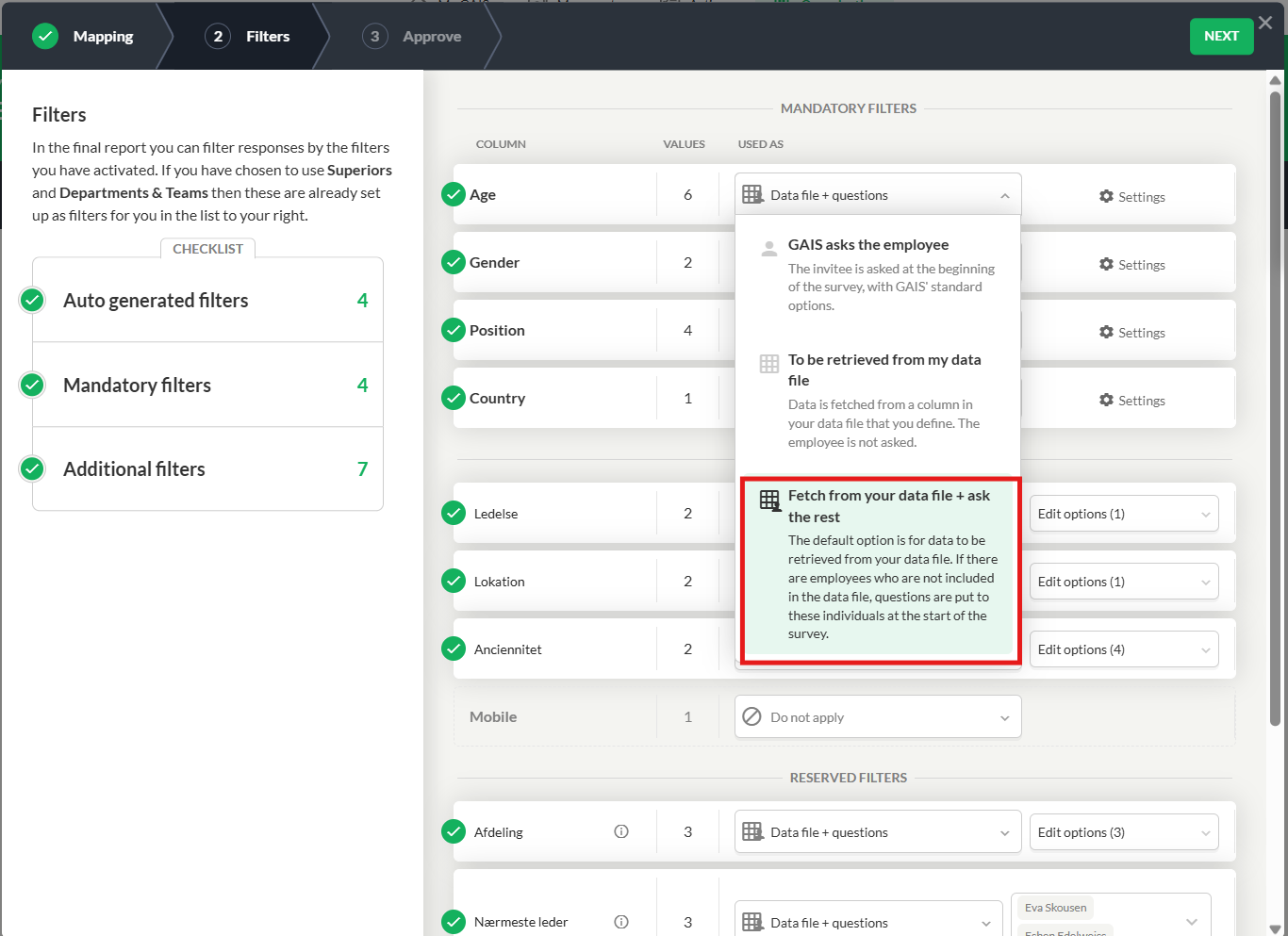
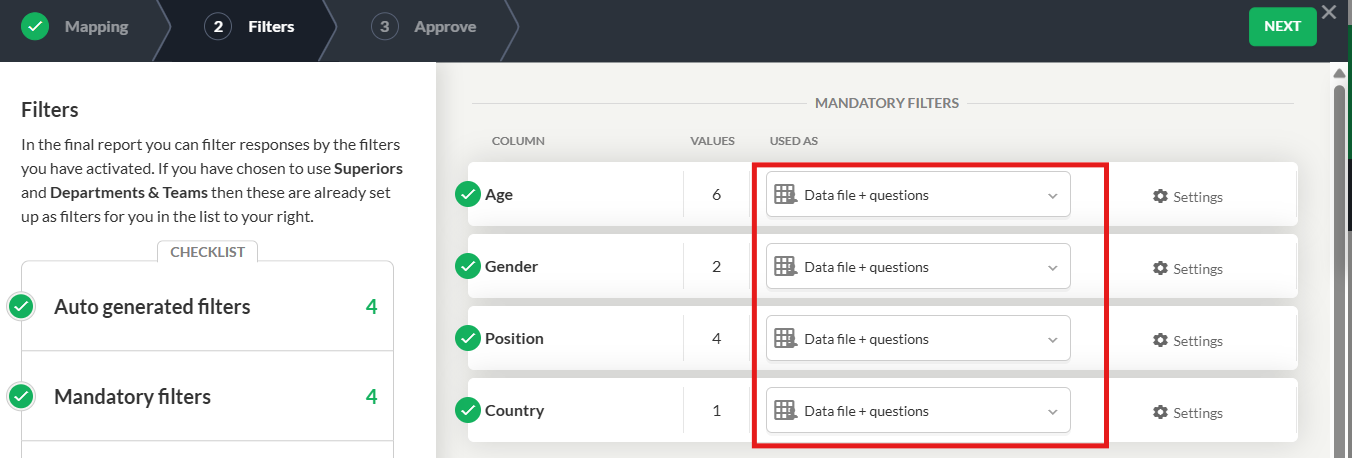
- When setting up the organization, make sure that under Filters you select: Fetch from data file + ask the rest. Do this for all the filters you wish to use.
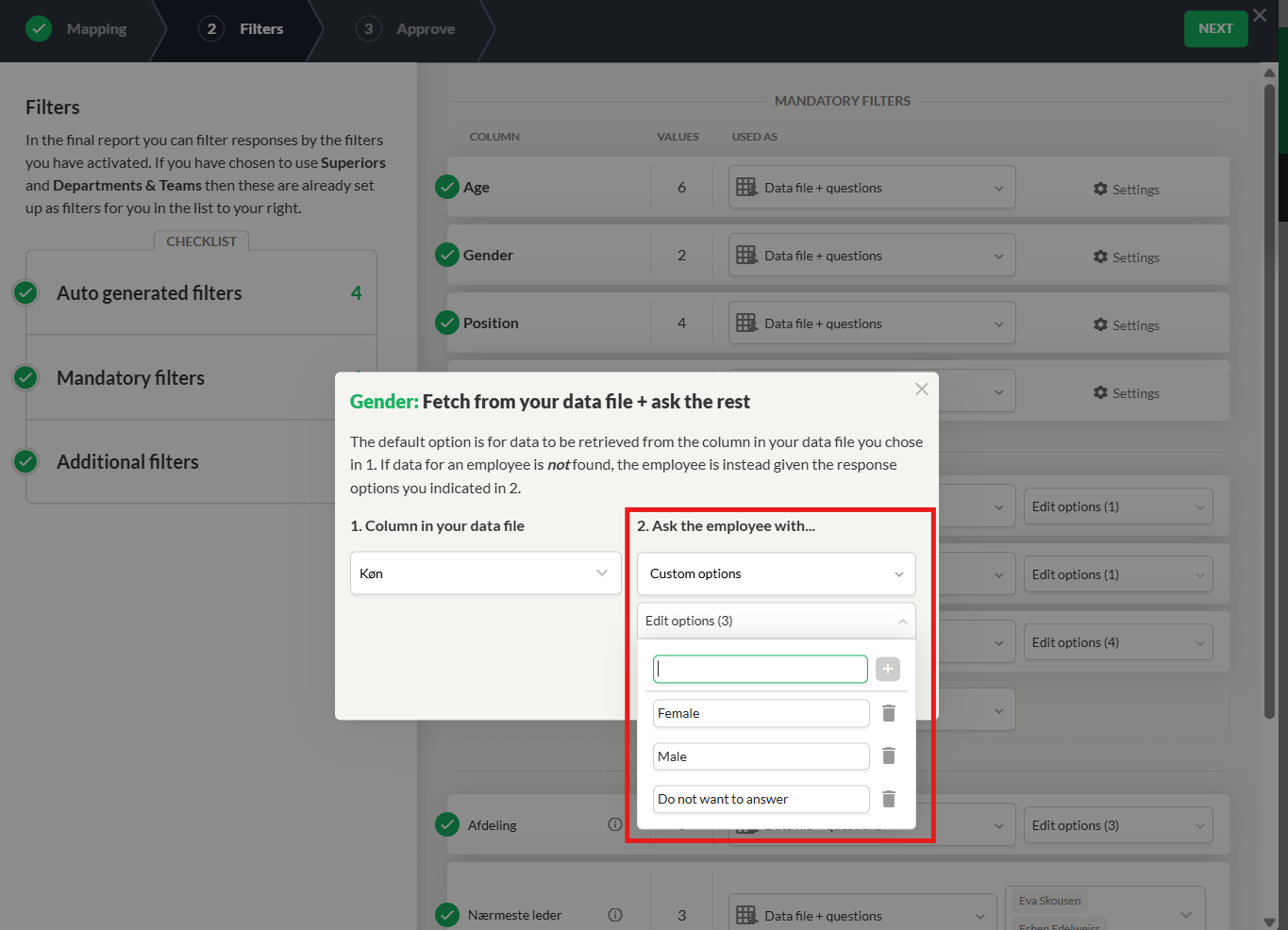
- Use the same response categories as those included in your data file. These are the response options that kiosk participants will be asked to choose from. This ensures that the same background data is collected for kiosk participants as for all other participants. This information can subsequently be used for data filtering.
2. Invite Participants via Manual Collection or Public Link
Participants who are to be invited through manual collection or a public link should NOT be included in the data file.
To invite them:
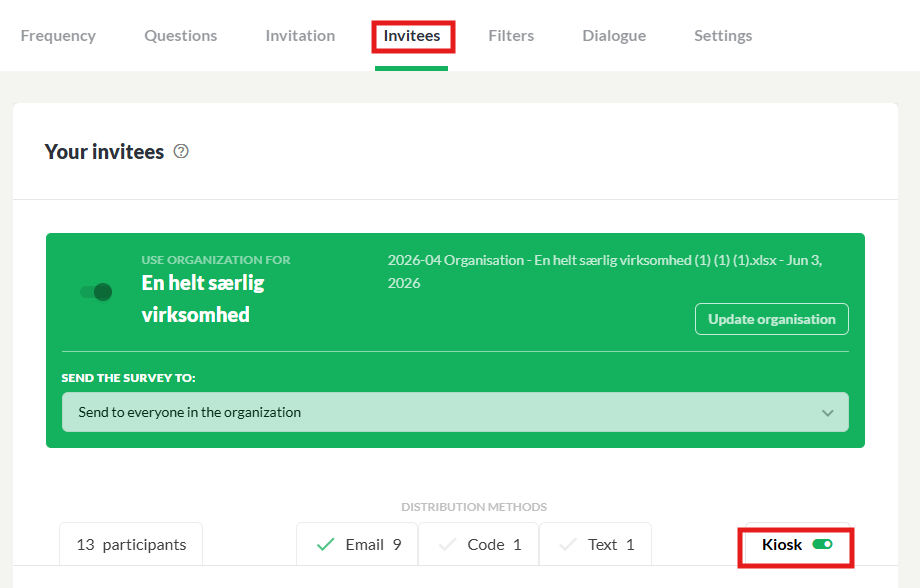
- Go to edit mode -> Open the Participants tab -> Enable Kiosk.
- Click the Kiosk tab -> choose either Manual Collection or Public Link -> copy the link.
- Manual Collection: Open the link on a computer or tablet that has been set up for collecting responses. This could, for example, be in a cafeteria or staff room. The computer/tablet should be placed somewhere accessible to employees. We recommend arranging specific time slots during which employees physically attend and submit their responses.
- Public Link: Share the link via, for example, the company intranet or an employee app. This collection method limits respondents to one response based on browser data. IMPORTANT: The platform cannot completely prevent participants from responding multiple times by using different browsers or devices. Manual collection, as a controlled process, therefore provides significantly greater assurance that everyone participates—and only participates once.
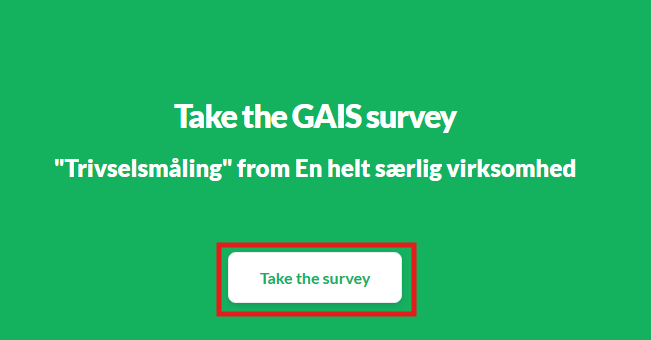
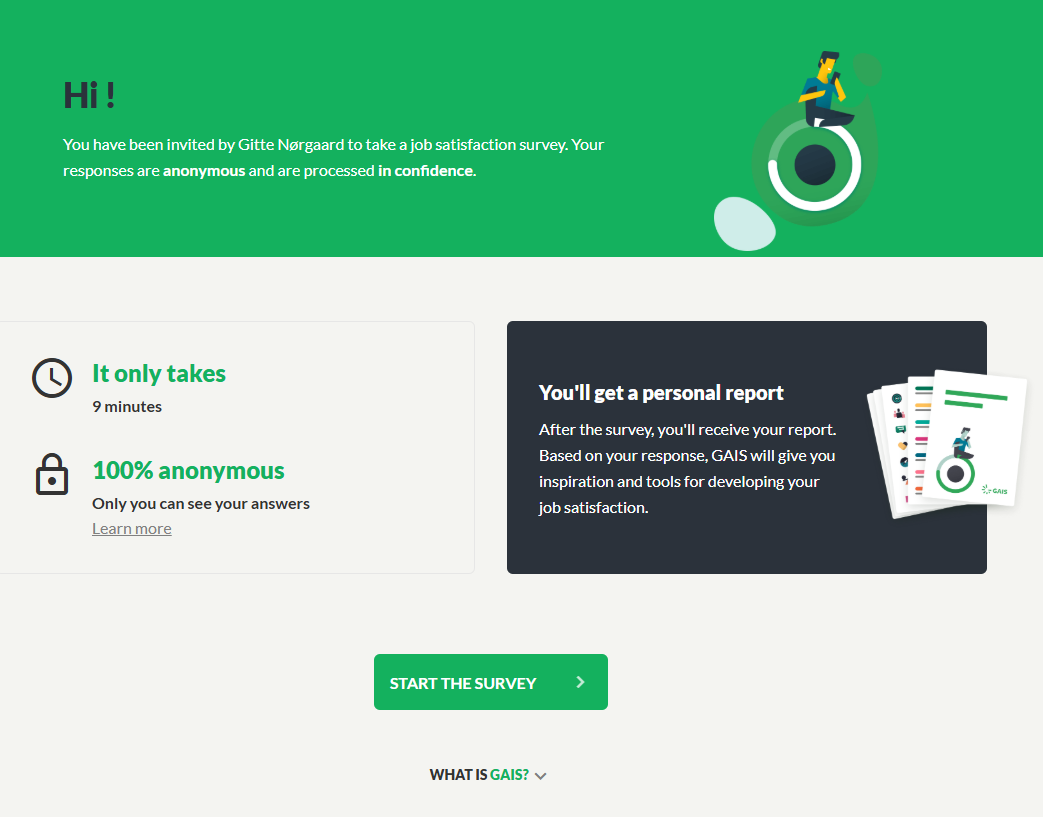
- When the link is opened, the following screen appears. The survey is ready for the first participant.
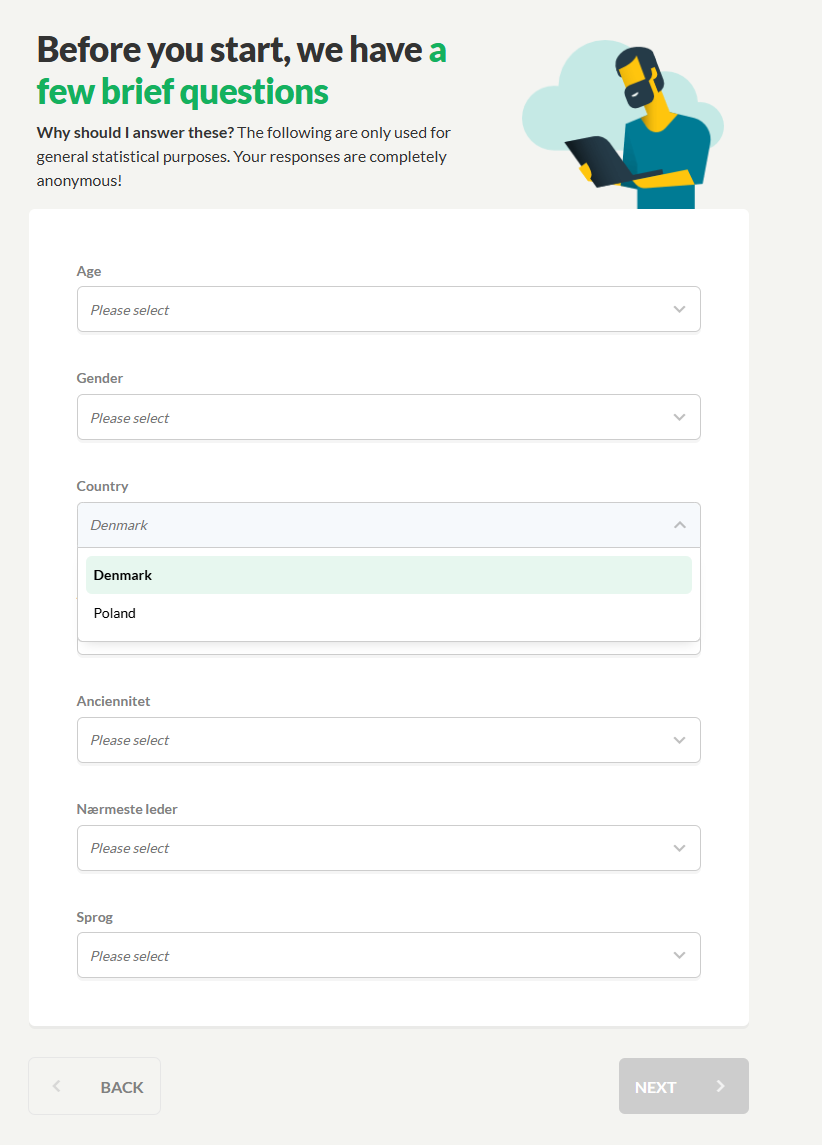
- Before the survey begins, participants must answer the background questions for which you defined response categories when setting up the organization (see section 1).
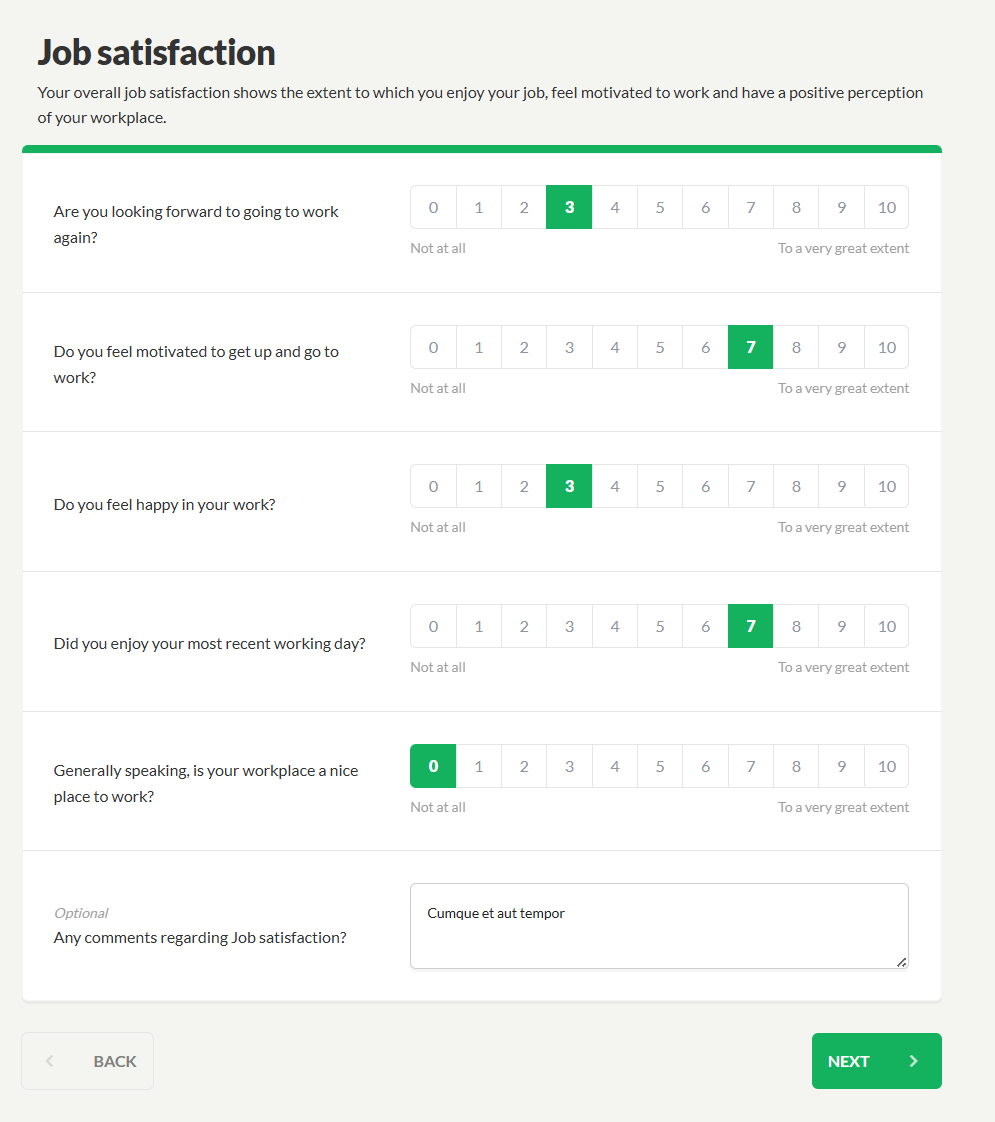
- The survey questions will then be presented.
- Once the survey has been completed, participants have the option to:
- View their personal report immediately, without access to it later.
- Enter their name and personal email address, in which case the report will be sent to that email address and can be accessed later.
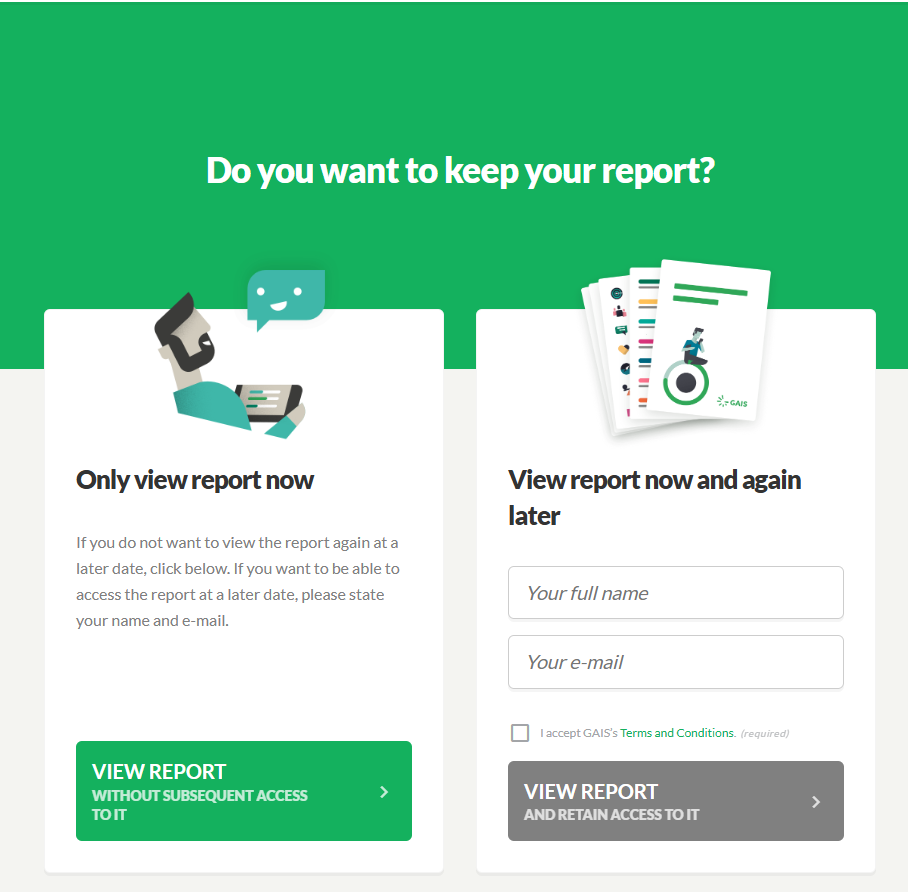
- Finally, the response is closed, and the survey is ready for the next participant.
Manage the Collection Process
With this collection method, GAIS cannot track whether all intended participants have responded or whether some participants have responded more than once.
It is therefore up to your organization to manage the process. For example, you may define specific time slots during which different groups are scheduled to complete the survey.
Once data collection has been completed, deactivate the link using the same settings where it was originally activated.
If you later discover that responses are still missing, you can reactivate the link.
Monitor Your Survey
Once you have started collecting responses, you can continuously monitor the progress of the survey.
When editing the survey, under Participants, you can see how many participants without an email address have responded.
However, unlike participants who have an email address, you cannot send reminders to participants without an email address.
Was this article helpful?
That’s Great!
Thank you for your feedback
Sorry! We couldn't be helpful
Thank you for your feedback
Feedback sent
We appreciate your effort and will try to fix the article