If you have been invited to view either an excerpt of a GAIS report or the full report, we explain here how to open it for the first time, and how to access it again if you'd like to open it at a later point.
Click on the title below to navigate to the desired guide:
- How to access the report via the invitation
- How to find the report again later
- If you can only see your personal report
How to access the report via the invitation
You will receive an invitation to the report via email. It looks like this:
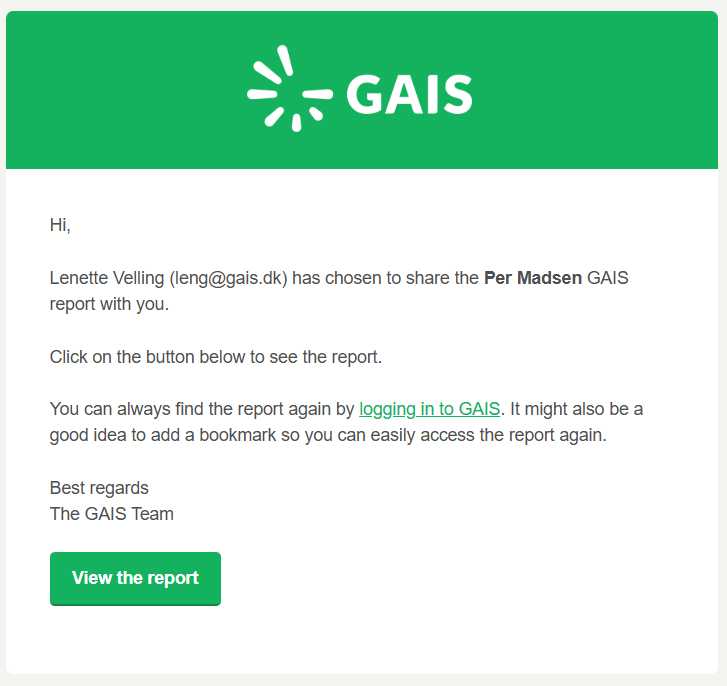
When you click View report, you will be taken directly to your report excerpt. If you are already a user, and the platform asks for a login, simply enter your password.
If it's your first time logging in to GAIS, you'll need to create a password before you can access the report.
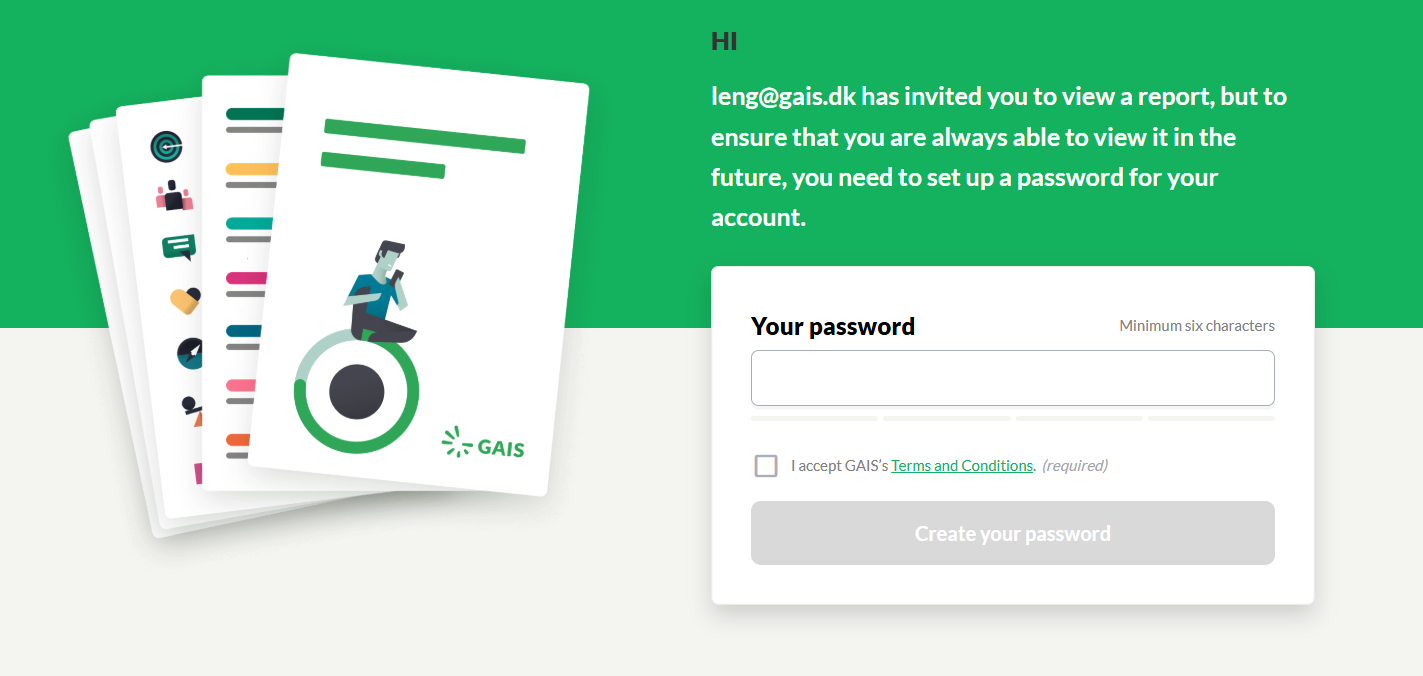
Please note: The link in the invitation is only valid for 14 days from the time it was sent.
How to find the report again later
You don't need to save the invitation email to be able to view your report again. You can always access it by logging in directly on the platform.
1 Go to app.gais.dk
2 Log in with your email and password.
- If you've forgotten your password, you can reset it via Forgot password on the login page.
3 Under My reports, you will be able to see the reports that have been shared with you.
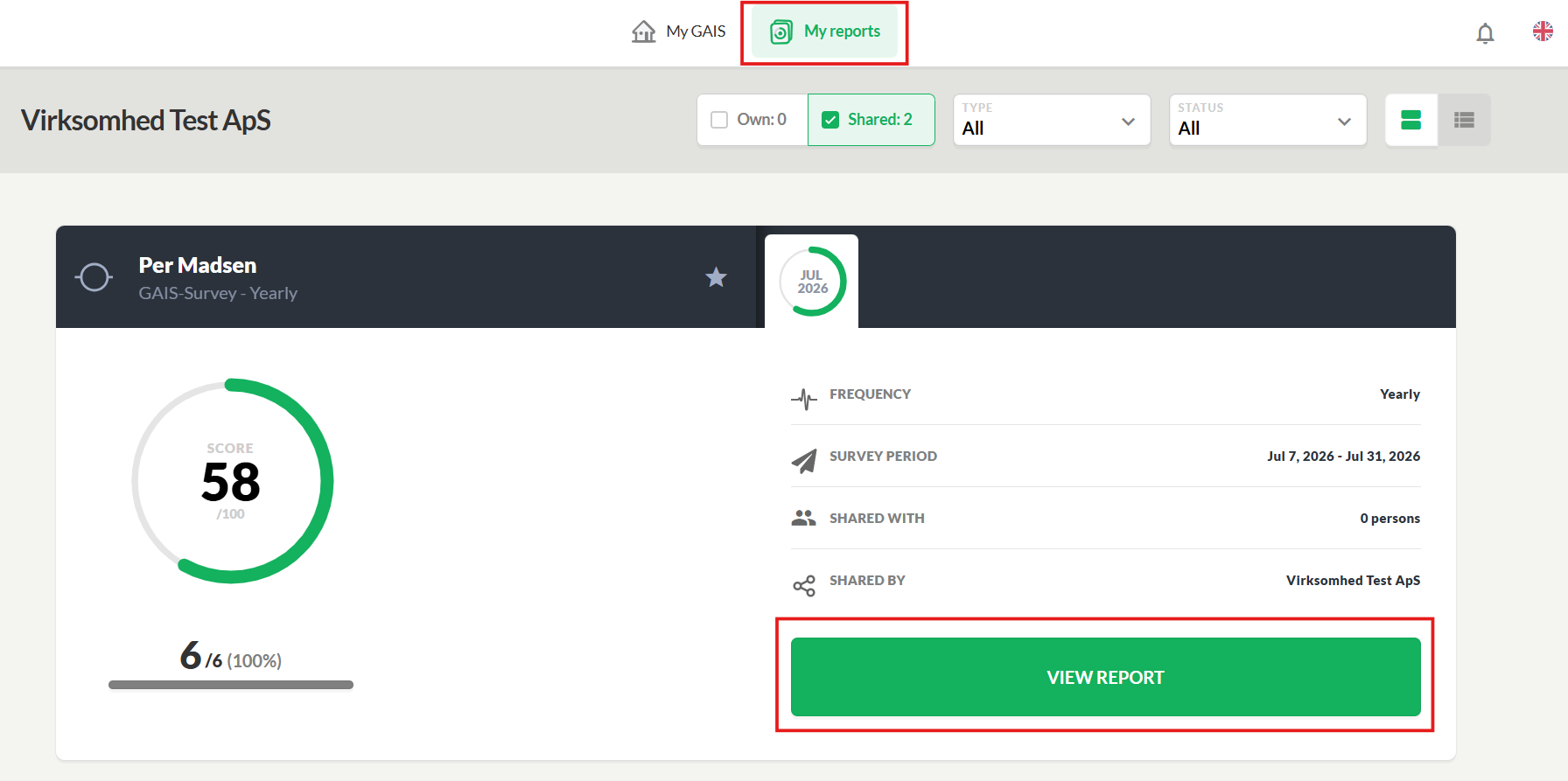
This way, you'll have ongoing access to the report, whether or not you still have the invitation email at hand or the link in it has expired.
If the invitation link has expired
Since the link in the invitation email is only active for 14 days, it may expire if you haven't accessed the report within that period. However, this does not mean you lose access to the report.
If the link has expired, you will land on a page with this message:
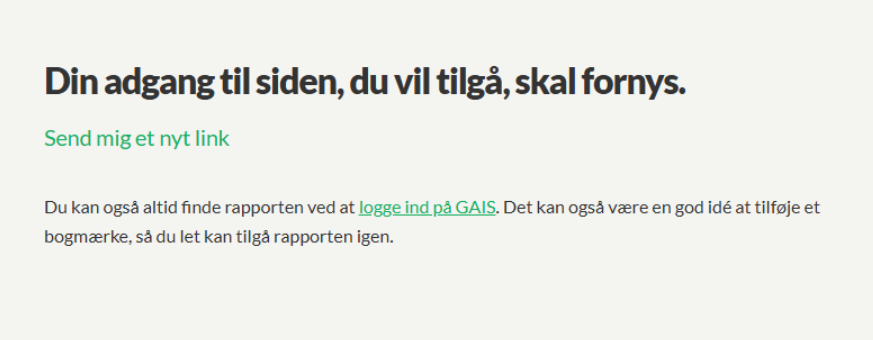
Here, you can simply click Send me a new link, or you can log in to the GAIS platform and access the report from there.
If you can only see your personal report
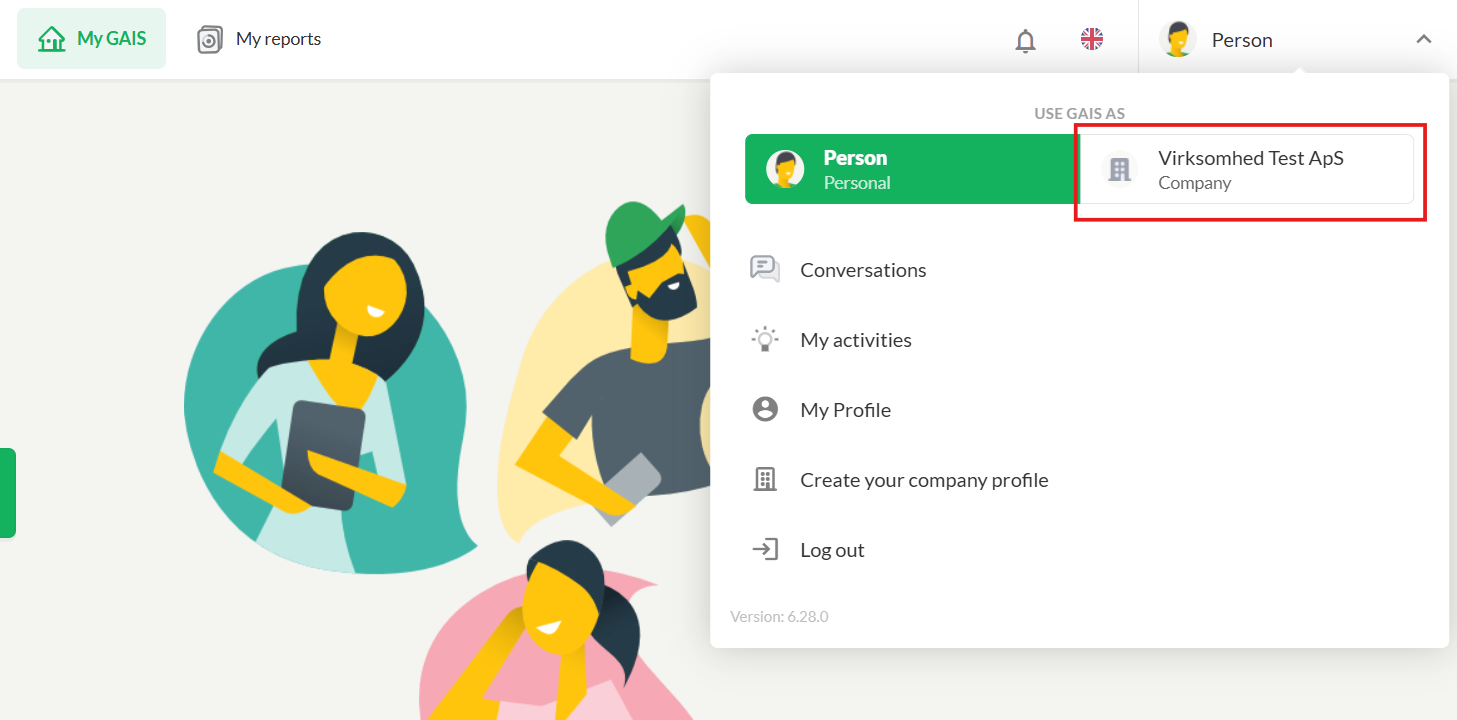
If you can only see your own personal report, it's most likely because you need to switch to your company profile. You can check this in the top right corner by seeing if your name is displayed there. To view the shared reports, you need to select your company under Use GAIS As.
Was this article helpful?
That’s Great!
Thank you for your feedback
Sorry! We couldn't be helpful
Thank you for your feedback
Feedback sent
We appreciate your effort and will try to fix the article